
- System & Web App Development
Field Technician App The job site in a technician's pocket.
An installable web app for the technicians of a low-voltage and security integration company. Crews use it on site to check in, tick off every camera and card reader they install, collect parts from purchase orders, log expenses, upload photos and print reports, on a phone, an iPad or a desktop.
- Role
- Mobile app designer & developer
- Timeline
- Aug 2026 to present
- Status
- In production
The problem
Field crews ran the day on a set of AppSheet tools that were slow on a job site, hard to use with gloves on and weak signal, and split across separate apps. Installs, check-ins and parts pickups were tracked in different places, so the office pieced the picture together by hand.
The solution
One fast app the crew installs on their phone, built on the same API and database as the office system. Every job's equipment list, crew, parts, expenses, photos and reports sit under one project, sized for thumbs on a phone and laid out as tables on an iPad or desktop.
Features
What it does
01
Check-ins and crew
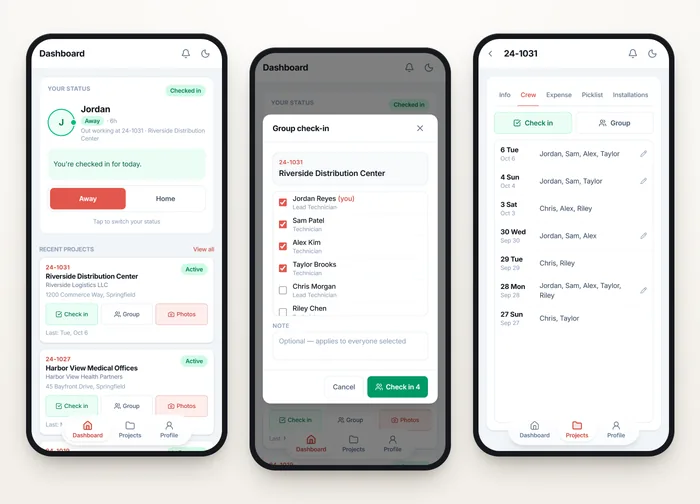
The dashboard shows whether a technician is out working or off shift and whether they have checked in today. Leads check a whole crew in at once, and the Crew tab shows who was on site each day.
- ✓One-tap check-in with an optional note and location
- ✓Group check-in from a crew roster, with skipped names reported
- ✓Day-off and Home/Away guards before a check-in goes through
02
Installation tracking
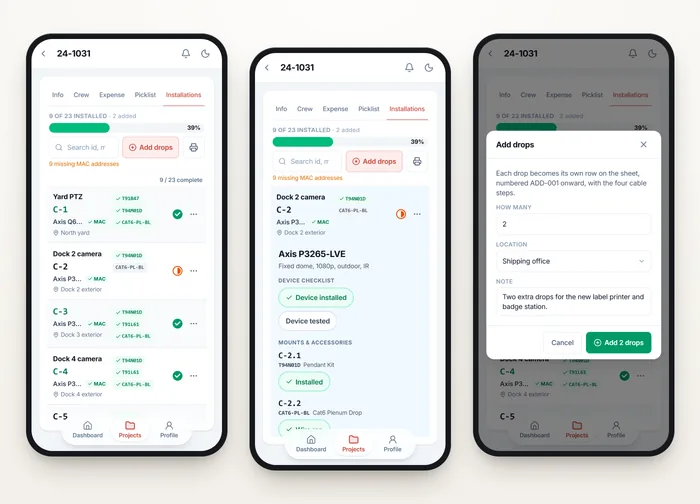
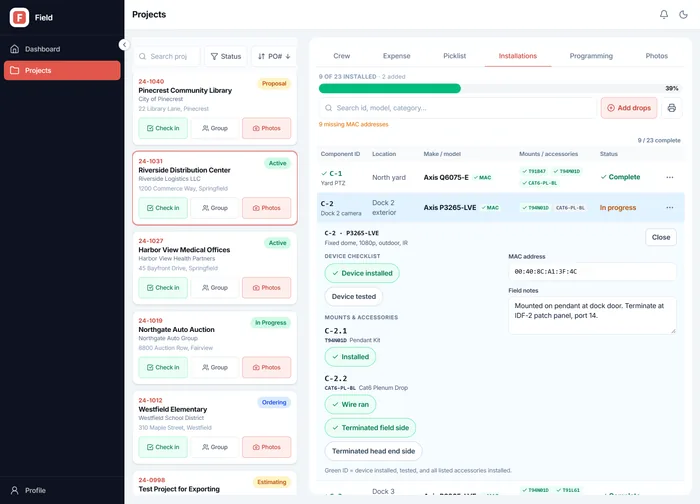
The job's equipment list from the estimating system becomes an installation checklist: every camera, reader, access point and cable run, with its mounts. Ticking a device complete also completes its mounts and cables.
- ✓Component IDs sized to read off a label on the hardware
- ✓Drops found on site added by the crew, named the way they say them
- ✓Search by ID, model, category or location, sorted C-9 before C-10
03
Picklist and expenses
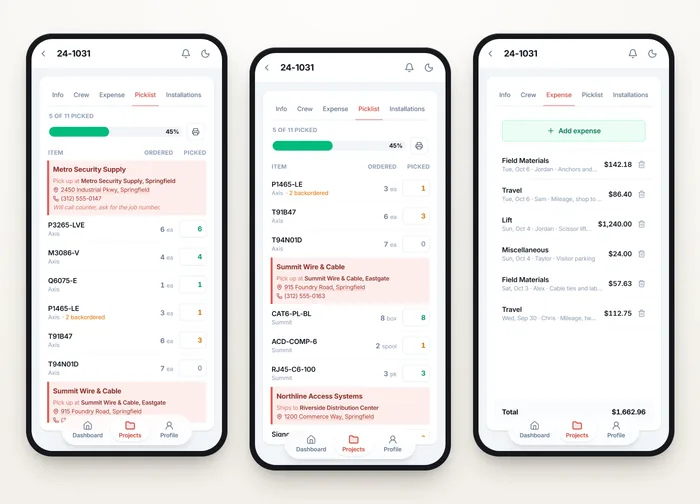
Parts to collect are grouped by purchase order, with the vendor, the branch to collect from as a maps link and a tap-to-dial phone. Expenses are logged against the job with a category and amount.
- ✓Ordered, available, backordered and picked quantities per part
- ✓A progress bar for every purchase order
- ✓Technicians remove their own expenses, managers remove anyone's
04
Site info, lifts and photos
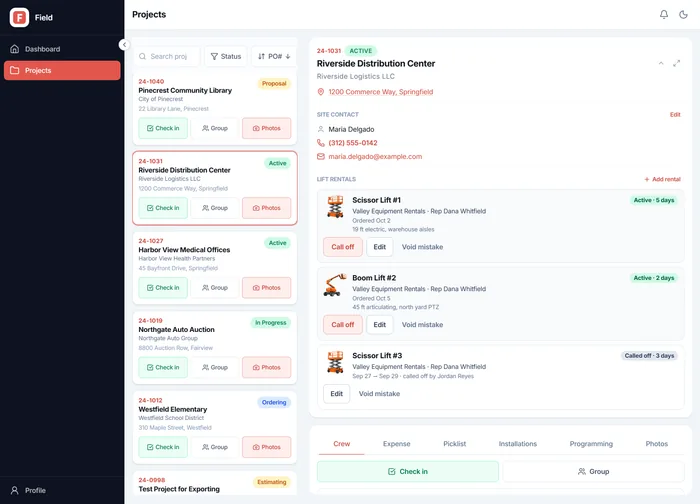
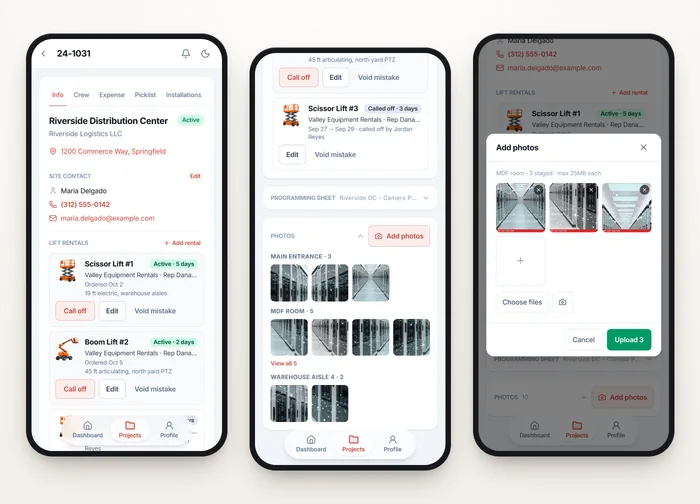
Each job holds its address, site contact and the boom or scissor lifts rented for it, with a running day count from the server. Photos upload several at a time, tagged with where they were taken.
- ✓Lift rentals added, edited, called off or voided from site
- ✓Photo locations suggested from the job's existing ones
- ✓Size checked before upload, with a clear message instead of an error code
05
iPad and desktop layout
On a wider screen a project opens in a panel beside the list, so comparing two jobs is one click. Installations become a sticky-header table laid out the way the operations lead sketched it.
- ✓Collapsible sidebar and split list-and-detail view
- ✓Programming and Photos tabs added on wider screens
- ✓Breakpoints tuned on real devices, by width and height
06
PDF reports
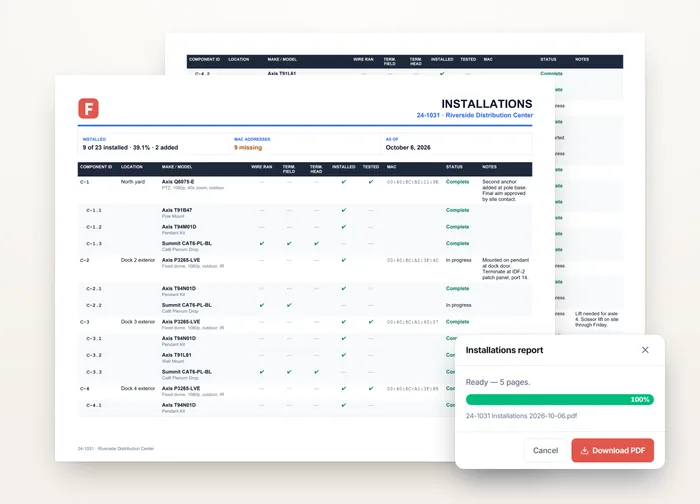
One tap builds a PDF in the browser: the full installations sheet or the picklist grouped by purchase order. On an iPad it opens the share sheet, which is how iOS saves a file.
- ✓Landscape letter with repeated headings and page numbers
- ✓No row split across two pages
- ✓The PDF library loads only the first time a report is made
Also included
- Programming sheets with live completion totals
- Offline banner and retryable error states
- Update prompt that never reloads mid-typing
- Light and dark themes
- Check-in history on the profile
- Permission-aware controls from the server
How it's built
Under the hood
- React 19
- TypeScript
- Vite
- Tailwind CSS v4
- React Router 7
- Motion
- PWA with Workbox
- jsPDF
- Vitest and Testing Library
- Shared FastAPI and PostgreSQL backend
Safe on a weak signal
Every new record carries a request ID kept across retries, so tapping again never makes a duplicate, and an edit that clashes with a colleague's refreshes instead of overwriting it.
The server keeps the numbers
Day counts, completion totals and permissions all come from the API, and the app refetches on focus, after writes and on a timer instead of counting on the phone.
Mock-first with the operations lead
Clickable phone-sized mock-ups were reviewed before any build, so features changed shape while change was cheap. The backend and office app were built by a collaborator on the same API.
Around 660 tests
Each guard was broken on purpose to confirm a test fails for it, so the tests prove behaviour instead of passing regardless.
Want something like this built?
Tell me what is slowing your team down and we will map it out on a call.