How to Set Up Microsoft 365 Inboxes for Cold Email: SPF, DKIM, DMARC and a Test Send
By Carlos Borlaza · · 8 min read
Outbound campaigns rarely fail because of the copy first. They fail because of infrastructure: a DKIM record that never published, a domain that was never verified, or mailboxes set up by hand with one setting missed. By the time open rates drop, the domain may already be damaged.
I built coldemailinboxes.io to automate this setup for every domain it sells. Whether you set up a handful of inboxes by hand or use a provider, these are the steps that have to be right.
1. Use separate sending domains
Cold email should go out from domains that are not your main company domain, for example a variation of your brand name. If a sending domain picks up spam complaints, your main domain, and the email your team and customers rely on, stays clean. Point each sending domain's website at your real site so prospects who check it land somewhere sensible.
2. Add and verify the domain in Microsoft 365
In the Microsoft 365 admin center, add the domain and prove you own it with the TXT record Microsoft gives you. Until the domain shows as verified, mailboxes cannot use it. If your DNS is on Cloudflare or another provider with an API, this is the first step worth automating, because it repeats for every domain.
3. Publish the four DNS records
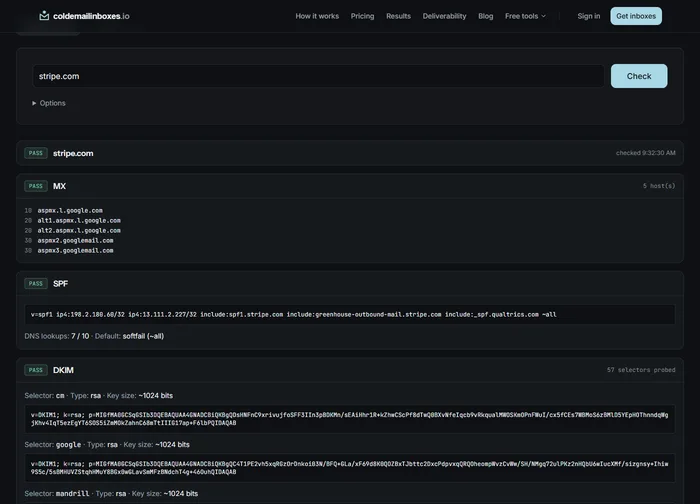
These records are how receiving mail servers decide whether to trust your email. Each one does a different job.
- MX: tells the internet where mail for the domain is delivered. For Microsoft 365 it points to the domain's mail.protection.outlook.com host shown in the admin center.
- SPF: a TXT record listing which servers may send for the domain. For Microsoft 365 it includes spf.protection.outlook.com. Keep one SPF record per domain.
- DKIM: a cryptographic signature on every message. Microsoft gives you two CNAME records to publish, and you then enable DKIM signing for the domain.
- DMARC: a TXT record at _dmarc that tells receivers what to do when SPF or DKIM fails, and where to send reports. Many senders start with p=none while they monitor, then tighten it.
4. Create the mailboxes and turn on SMTP AUTH
Create the mailboxes with realistic sender names. Most cold email sequencers connect over SMTP, and Microsoft 365 has SMTP AUTH turned off by default for many tenants, so it usually has to be enabled for each mailbox the sequencer will use. If your team sends as a shared identity, set SendAs permissions at the same time.
Doing this by hand for a few mailboxes is fine. At scale, it is where mistakes happen. The coldemailinboxes.io pipeline sets DKIM, SendAs and SMTP AUTH through the Exchange Online admin API, so the whole setup runs server-side without PowerShell.
5. Test before you hand anything to a sequencer
A record can look right and still fail. Before loading new inboxes into a sequencer, send test emails from a few of them and confirm they were delivered and authenticated. In the coldemailinboxes.io pipeline, a test send from five mailboxes, checked against Microsoft's message trace, has to pass before any domain is handed over.
- Cloudflare zone created and nameservers delegated
- Domain added and verified in Microsoft 365
- MX, SPF, DMARC and DKIM records written and enabled
- Mailboxes created with SendAs and SMTP AUTH
- Test send from 5 mailboxes, checked against message trace
- Handed over with a mailbox CSV for the sequencer
6. Warm up and send gradually
New domains and mailboxes have no sending history. Start with low daily volumes and increase gradually, using a warm-up tool if your sequencer offers one. Spread volume across several domains instead of pushing one hard, so a problem with one domain does not take the whole batch with it.
Case study: coldemailinboxes.io
The storefront, free DNS tools and the resumable provisioning engine behind every order.
Read itWritten by Carlos Borlaza
Remote virtual assistant, executive assistant and automation specialist with 9+ years in operations. I build the systems I write about. See how I work as your automation specialist.